The Hermes Agent API server exposes its core functionality—terminal, file operations, web search, memory, and skills—as an OpenAI-compatible HTTP endpoint. This allows frontends like Open WebUI to connect directly to your agent.
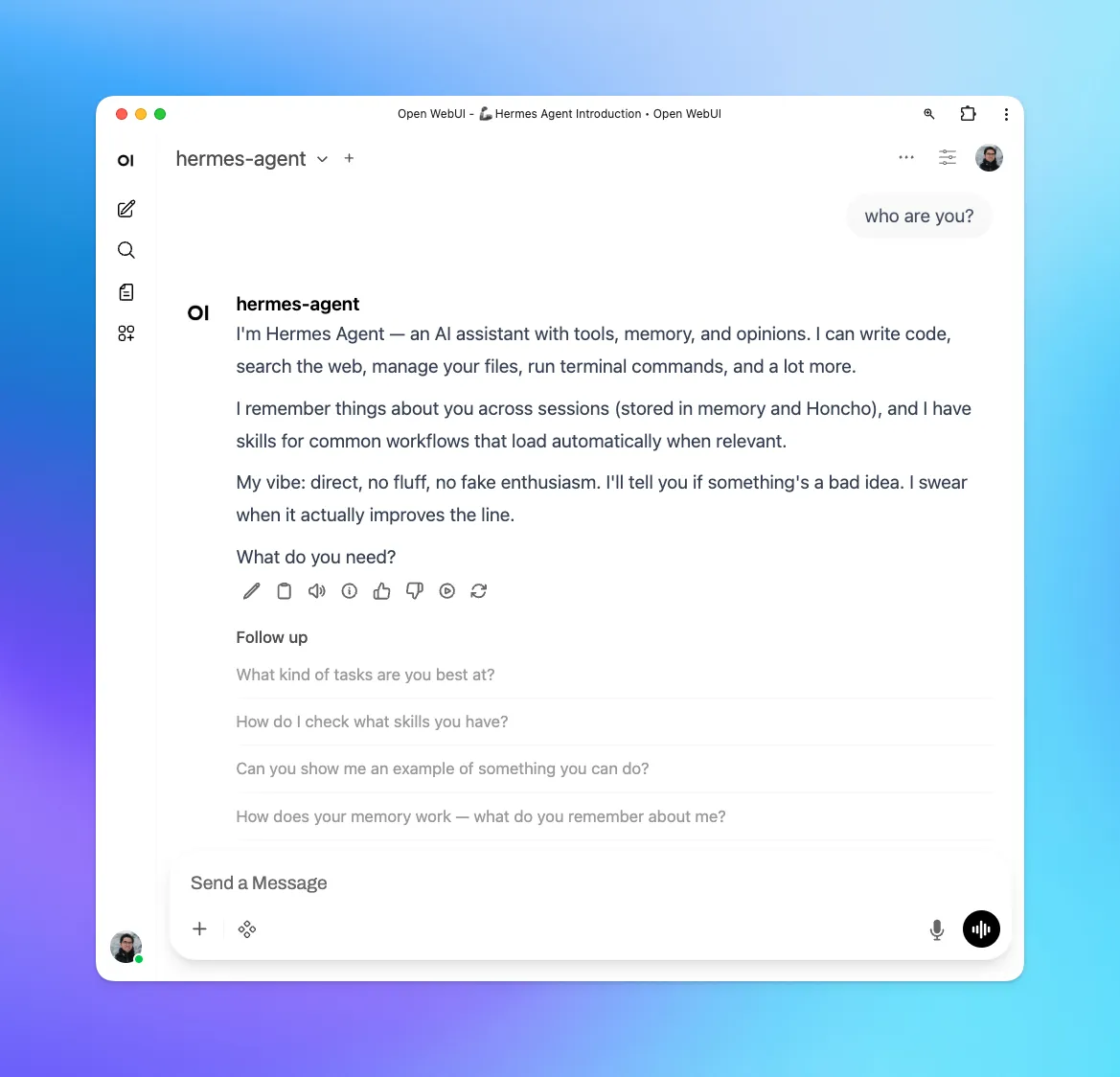
I wanted to use Hermes Agent as an OpenAI-compatible backend inside Open WebUI, but setting it up in a Docker/Coolify environment with UFW enabled required a few extra steps beyond the default localhost configuration.
Quick summary
If you are running:
- Hermes Agent on the VPS host
- Open WebUI in Coolify Docker
- UFW enabled
then check these three things:
- Hermes is listening on
0.0.0.0:8642 - Open WebUI points to the Docker gateway host address, not localhost
- UFW allows the Coolify subnet to reach port
8642
Network problem
Open WebUI kept showing:
OpenAI: Network Problem
Hermes was running. The API server was enabled. The health endpoint worked from the host. But Open WebUI still could not connect.
That is what made this annoying. The app error was vague, and the official localhost example was technically correct but not applicable to my setup.
The actual issue
The issue was not Hermes.
It was Docker container to host networking plus UFW.
Open WebUI is inside a Coolify Docker network. Hermes was on the host. So 127.0.0.1 inside the container pointed back to the container itself, not to the VPS host running Hermes.
Then there was a second problem. Even after finding the correct host address, UFW was blocking traffic from the Coolify subnet to the Hermes API port.
So the real problem was:
- wrong address for this setup
- container traffic blocked by firewall
What worked
1. Enable Hermes API server
In ~/.hermes/.env:
API_SERVER_ENABLED=true
# Generate a secure key with: openssl rand -base64 32
API_SERVER_KEY=<your-secret-key>
API_SERVER_HOST=<address>
API_SERVER_PORT=8642
Then start Hermes:
hermes gatewayCheck that it is listening:
sudo ss -tlnp | grep 8642Mine showed:
LISTEN 0 128 0.0.0.0:8642 0.0.0.0:* users:(("python",pid=...,fd=...))2. Find the Docker gateway IP Open WebUI uses to reach the host
First, find the Open WebUI container name:
docker ps --format "table {{.Names}}" | grep open-webuiThen inspect its network (replace <container_name> with your actual container name):
docker inspect <container_name> --format='{{range $k, $v := .NetworkSettings.Networks}}{{$k}}: {{$v.Gateway}}{{end}}'Mine returned:
<network_name>: <address>That meant Open WebUI needed to talk to Hermes through:
http://<address>:8642/v1Not http://127.0.0.1:8642/v1.
3. Test connectivity from inside the container
This is the check that exposed the real issue (replace <container_name> and <address>):
sudo docker exec <container_name> curl -v --connect-timeout 5 http://<address>:8642/v1/healthAt first, it timed out.
That told me Hermes was fine, but container traffic could not reach the host port.
4. Check UFW
My firewall config included this:
Default: deny (incoming), allow (outgoing), deny (routed)That was the blocker.
The Coolify container subnet could not reach port 8642 on the host.
5. Allow the Coolify subnet to reach Hermes
My Coolify network was <internal_subnet> (adjust to your subnet), so I added this rule:
sudo ufw allow from <internal_subnet> to <host_ip> port 8642 proto tcp comment 'Hermes API from Coolify OpenWebUI'
sudo ufw reload
Then the same curl test from inside the container finally worked:
{ "status": "ok", "platform": "hermes-agent" }That was the fix.
Open WebUI settings that worked
In Open WebUI, I used:
- Base URL:
http://<address>:8642/v1 - API Key:
API_SERVER_KEYfrom~/.hermes/.env
After that, Hermes showed up and worked as an OpenAI compatible backend.