Step-by-step guide on how to run local LLMs with Ollama and using them via OpenCode.
Table of contents
Open Table of contents
Why Run Local AI Models?
Pros
- Total Privacy: Your code and prompts never leave your machine. No data sent to OpenAI, Anthropic, or any third party.
- No Rate Limits: Process as many requests as your hardware can handle. No API quotas or throttling.
- Offline Capable: Works without internet once the model is downloaded. Perfect for travel or restricted networks.
- Zero Cost: No API fees or subscriptions. The only cost is your electricity and hardware.
- Customizable: Swap models freely. Run fine-tuned variants or experimental models that cloud providers don’t offer.
Cons
- Resource Intensive: Local models consume RAM and GPU memory. A 9.6GB model needs ~10GB free RAM to run comfortably.
- Hardware Requirements: Bigger models need better specs. A 70B parameter model needs 40GB+ VRAM (RTX 4090 territory). Consumer GPUs cap out at smaller models.
- Less Capable: Local models lag behind frontier models (Claude 3.7 Sonnet, GPT-4o, o3). Complex reasoning, math, and edge cases suffer.
- Slower Inference: Even on an RTX 3060, local models are slower than API responses. Expect 3-10s per response for 8B models.
- Manual Maintenance: You manage updates, model downloads, and troubleshooting. No “it just works” experience.
The Trade-off
Use local models when: Privacy matters, you process sensitive code, or you want zero ongoing costs.
Use cloud APIs when: You need maximum capability, fastest responses, or don’t want to manage hardware.
This guide focuses on the local approach with a mid-range setup (RTX 3060 + 32GB RAM) running an 8B parameter model—balanced for everyday coding assistance without cloud dependency.
Prerequisites
My setup:
| Component | Specification |
|---|---|
| OS | Ubuntu 24.04.4 LTS (Noble Numbat) |
| CPU | AMD Ryzen 7 3700X (16 threads) @ 4.43 GHz |
| GPU | NVIDIA GeForce RTX 3060 |
| RAM | 32 GB |
Minimum requirements:
- macOS, Linux, or Windows with terminal access
- GPU — inference on CPU is 10-50x slower than GPU
- Sufficient RAM for your chosen model (16GB+ recommended for 8B parameter models)
Why a good GPU matters:
Local AI models are compute-intensive. A dedicated NVIDIA GPU with CUDA cores (or Apple Silicon with Metal) dramatically speeds up token generation:
- With GPU (RTX 3060): 10-30 tokens/second — interactive, responsive coding help
- Without GPU (CPU only): 1-5 tokens/second — sluggish, painful for long responses
VRAM is the limiting factor. The model must fit entirely in GPU memory to run efficiently. The 9.6GB gemma4:e4b model fits comfortably in an RTX 3060’s 12GB VRAM. Larger models (13B, 70B) require proportionally more VRAM (24GB, 48GB+).
Check your specs:
# OS version
lsb_release -a

# CPU info
lscpu | grep "Model name\|CPU(s)"

# RAM
free -h

# GPU (if NVIDIA)
nvidia-smi -L
Step 1: Install Ollama
Download and install Ollama using the official install script:
curl -fsSL https://ollama.com/install.sh | shSource: https://ollama.com/
Note: This installs Ollama as a system service that runs in the background.
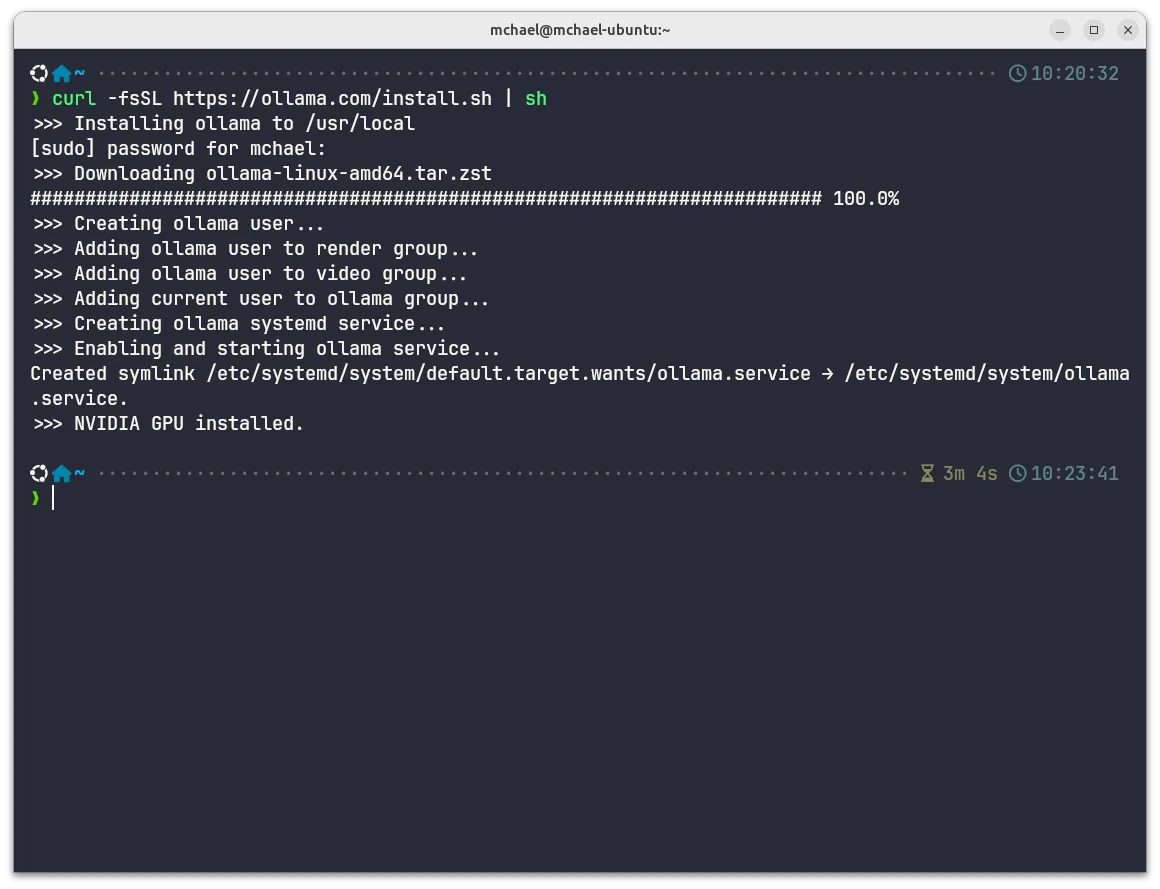
What this does:
- Creates
ollamasystem user - Adds user to
ollama,render, andvideogroups (for GPU access) - Sets up systemd service to auto-start Ollama
- Detects NVIDIA GPU for CUDA acceleration
Step 2: Pull a Model
Browse available models at https://ollama.com/search. For this guide, we’ll use Gemma 4 e4b — the 8B parameter, Q4_K_M quantized variant tagged as latest.
Tag explanation: Ollama uses Docker-style tagging.
gemma4orgemma4:latestpulls the default variant. Explicit tags likegemma4:e2borgemma4:26bpull specific sizes.
Run the command to pull the model:
ollama pull gemma4:e4bModel specs (gemma4:e4b):
| Property | Value |
|---|---|
| Size | 9.6GB |
| Parameters | 8B |
| Quantization | Q4_K_M |
| Context length | 128K tokens |
| Modalities | Text + Image |
| License | Apache 2.0 |
Download complete:
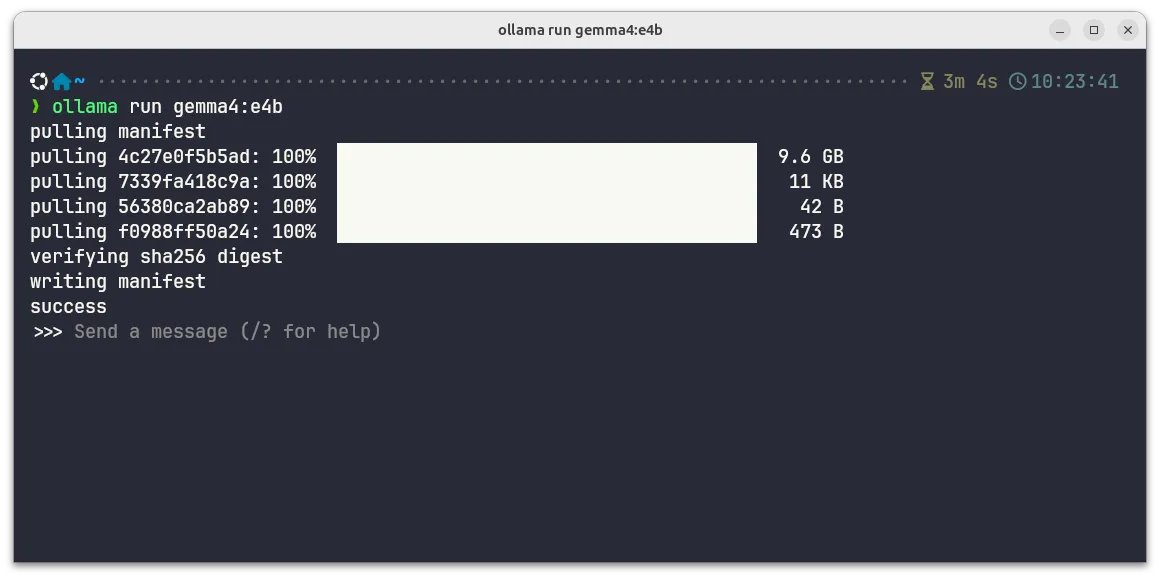
Note: First pull downloads ~9.6 GB. Subsequent runs are instant (model cached locally).
Step 3: Test the Model (Interactive Mode)
Run the model interactively to verify it’s working:
ollama run gemma4:e4bThis drops you into a chat session with the model. Try asking it something:
>>> Why is the sky blue?Expected behavior:
Gemma 4 shows its reasoning process before responding:
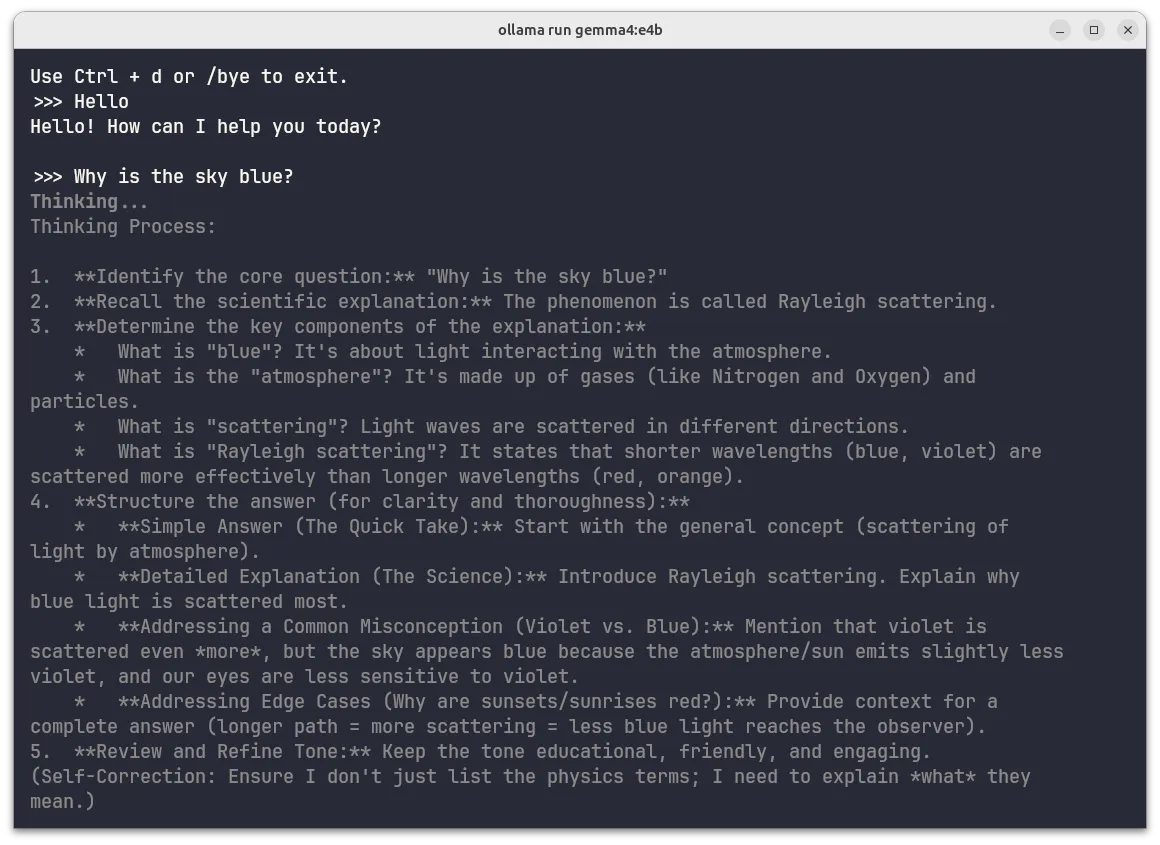
Chain-of-thought reasoning displayed during generation
Then outputs a formatted, detailed answer:
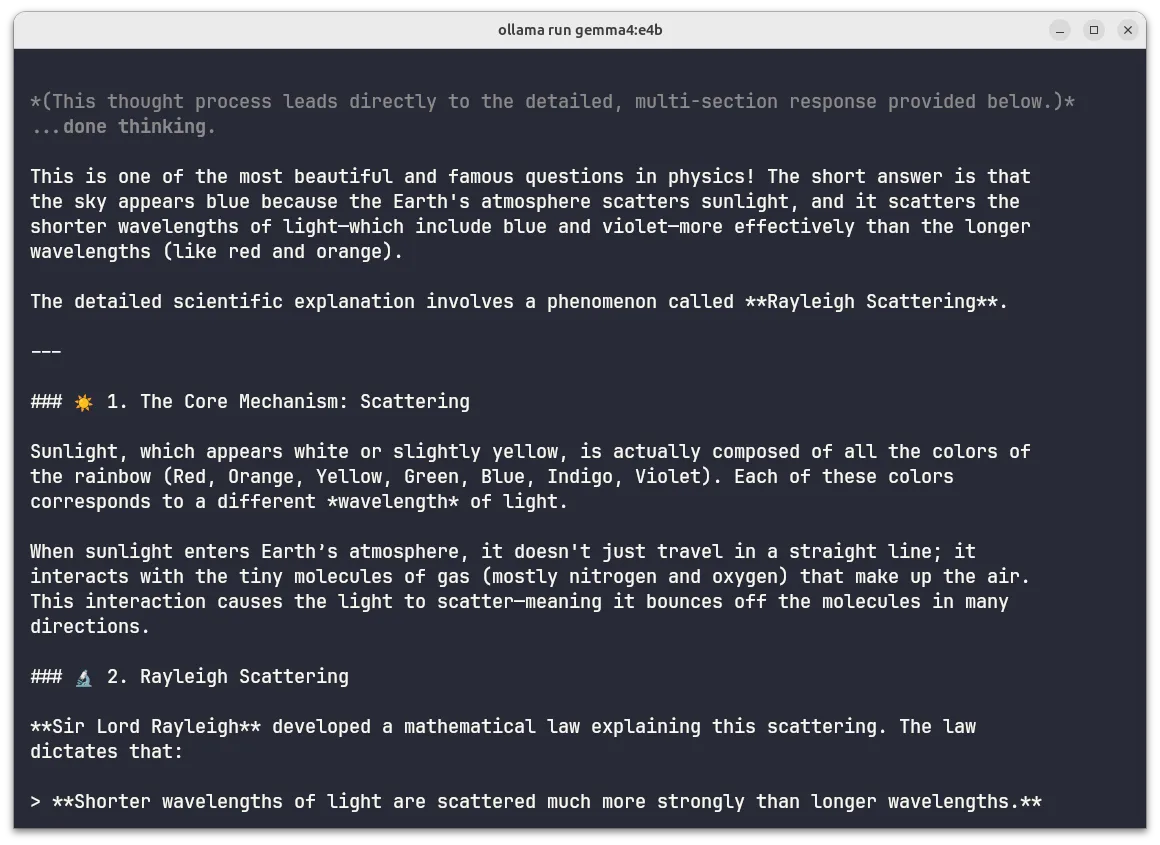
Formatted response with markdown headers, emojis, and blockquotes
To exit: press Ctrl+D or type /bye.
Step 4: Install OpenCode
OpenCode is an AI coding harness that works with local models via Ollama.
Install via the official script:
curl -fsSL https://opencode.ai/install | bashSource: https://opencode.ai/
Installation progress:
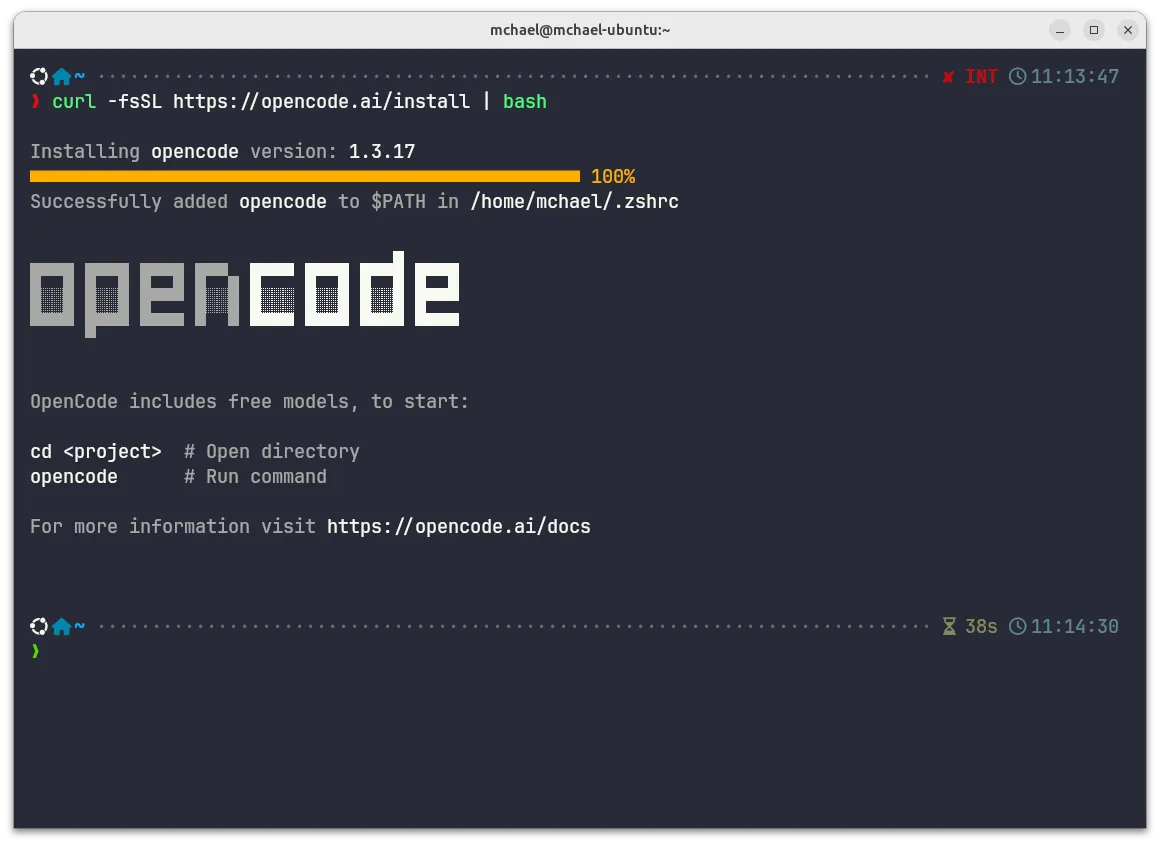
OpenCode installed and added to PATH
The installer automatically adds OpenCode to your shell PATH (.zshrc in this case).
Step 5: Configure OpenCode to Use Ollama
Create the OpenCode configuration file to connect to your local Ollama instance:
mkdir -p ~/.config/opencode
cat > ~/.config/opencode/opencode.json << 'EOF'
{
  "$schema": "https://opencode.ai/config.json",
  "provider": {
    "ollama": {
      "npm": "@ai-sdk/openai-compatible",
      "name": "Ollama",
      "options": {
        "baseURL": "http://localhost:11434/v1"
      },
      "models": {
        "gemma4:e4b": {
          "name": "gemma4:e4b"
        }
      }
    }
  }
}
EOF
Important: The JSON key in the
modelssection must match the Ollama model name exactly, including the colon (:). Usinggemma4-e4b(with hyphen) will cause a “model not found” error. Always usegemma4:e4b(with colon).
Note: Make sure Ollama is running (check with
ollama listto see model names). The systemd service started automatically after installation.
Launch OpenCode
opencodeInitial interface:
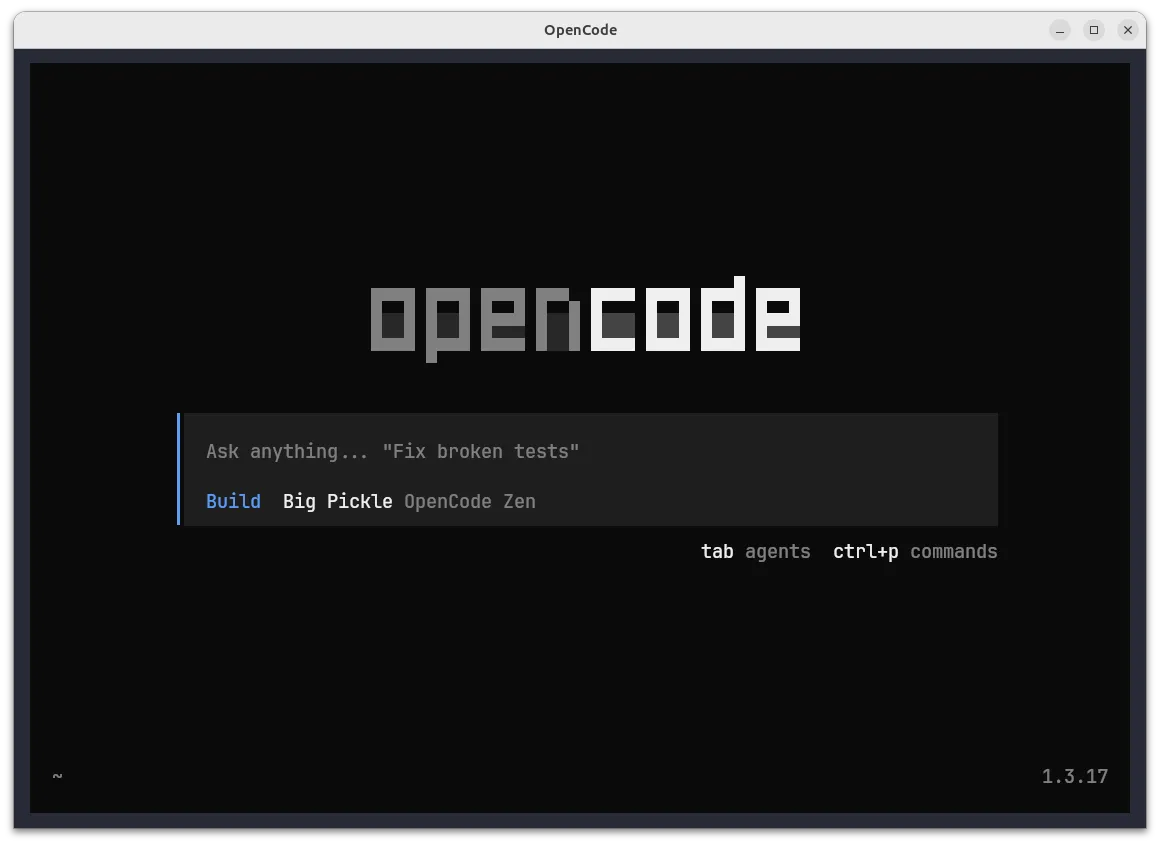
OpenCode v1.3.17 main interface on first launch
The interface shows:
- Central input box: “Ask anything…”
- Agent modes: Build (selected by default)
- Keyboard shortcuts:
tabfor agents,ctrl+pfor commands
Switch to Your Local Model
Type /models or select it from the list.
Model selection screen:
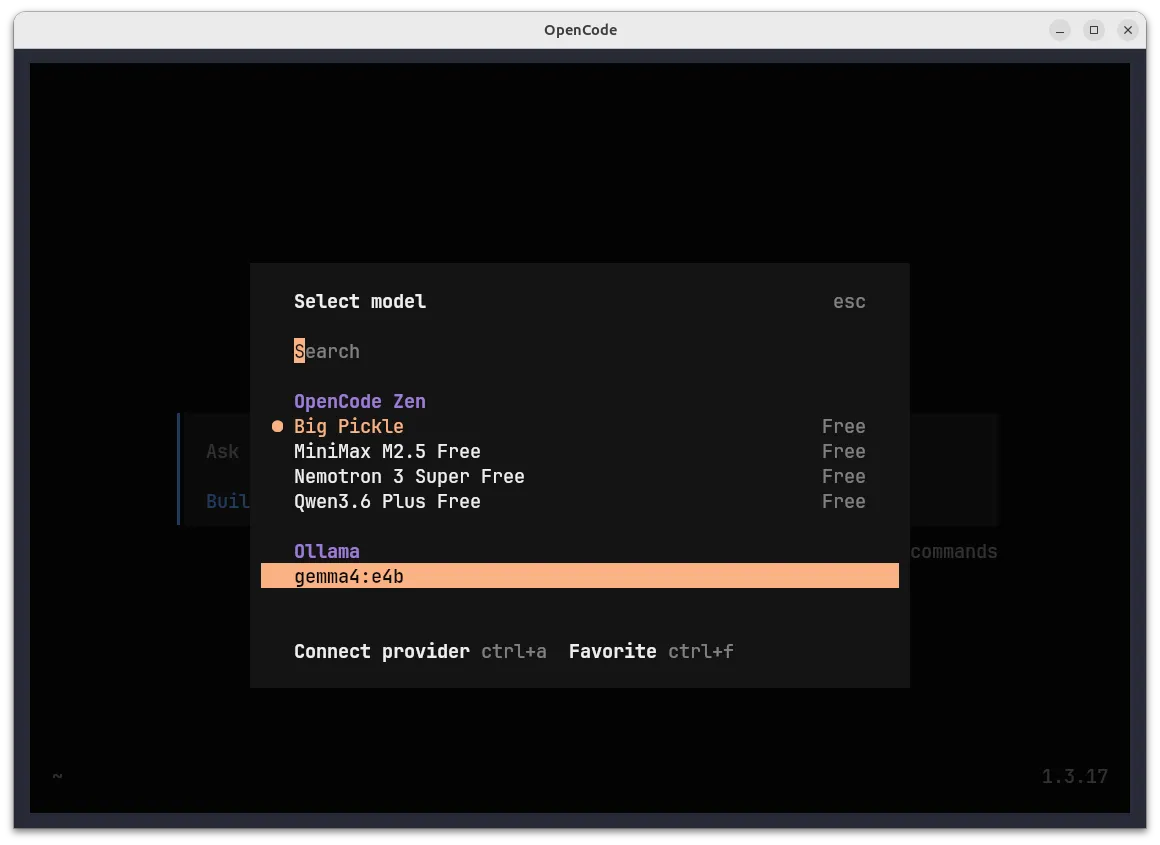
Local gemma4:e4b appears under the Ollama section
The model picker shows:
- OpenCode Zen section: Cloud models (Big Pickle, MiniMax, Nemotron, Qwen)
- Ollama section: Your local
gemma4:e4bmodel (highlighted)
Select gemma4:e4b and press Enter. OpenCode will now use your local model for all requests.
Verification: Local Model Working
Once selected, start a conversation. The chat interface will show:
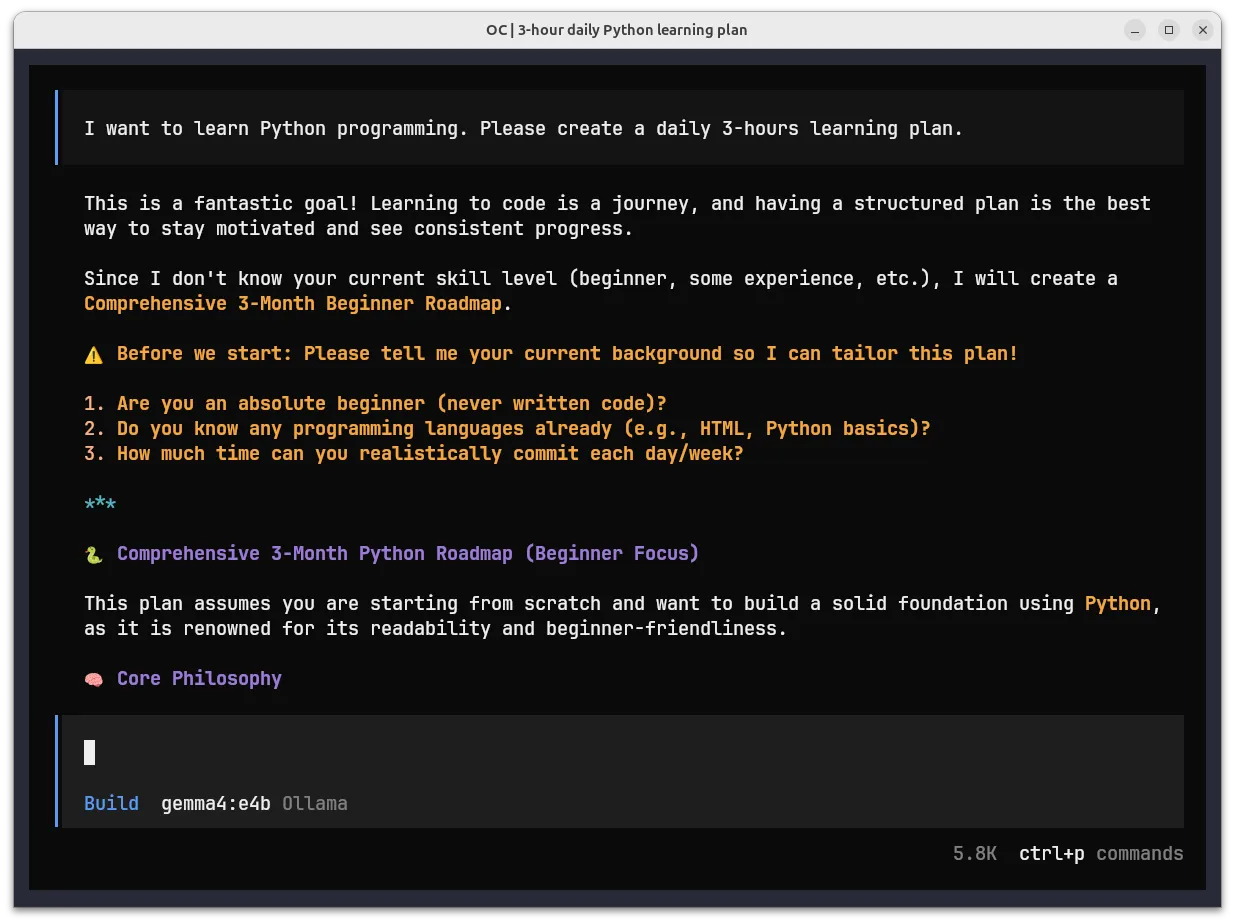
OpenCode successfully using local gemma4:e4b via Ollama — generating a Python learning plan
Confirmation signs:
- Model indicator: Bottom status shows
Build gemma4:e4b Ollama - Response metadata: Shows structured output with sections, emojis, and formatted text
- Zero cost: No API calls, pure local inference on your hardware
- Token tracking: Context window usage displayed in sidebar
Note: If you see
model 'gemma4-e4b' not found, the JSON key in your config has a hyphen instead of a colon. Fix: use"gemma4:e4b":as the key (not"gemma4-e4b":).
Testing: Build a Note-Taking App
Verify your local model can generate working code. In OpenCode with your local model selected, paste:
Create a simple note-taking app using vanilla JavaScript, HTML, and CSS.
Do not use web search — just write the code directly.

Requirements:
- Input field to add new notes
- Display list of saved notes with timestamps
- Delete button for each note
- Save to localStorage (persist after page refresh)
- Clean, centered layout (max-width 600px)
- No external libraries — pure vanilla JS/CSS

Provide the complete code as a single HTML file.
Local model generating code:
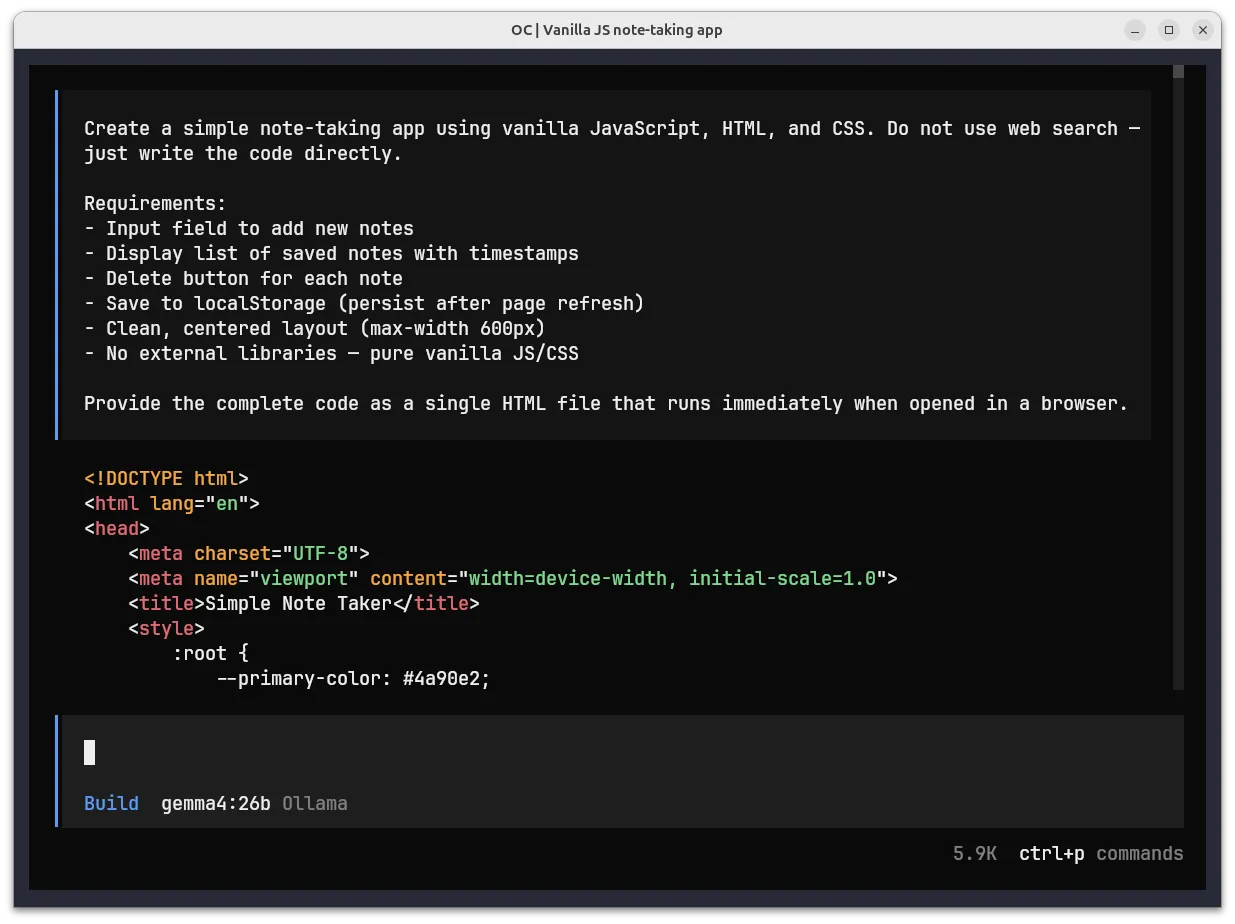
Gemma 4 26B model generating a complete note-taking app with HTML, CSS, and JS
The model outputs a complete, runnable HTML file with:
- HTML5 boilerplate
- Embedded CSS with custom properties (
:rootvariables) - Vanilla JavaScript for DOM manipulation and localStorage
The screenshot shows gemma4:26b (26B parameters, 18GB) being used for code generation. I switched to the larger gemma4:26b model because I was having some tool-calling issues with gemma4:e4b. It handled structured outputs more reliably but with slower token generation.
Generated app running in browser:
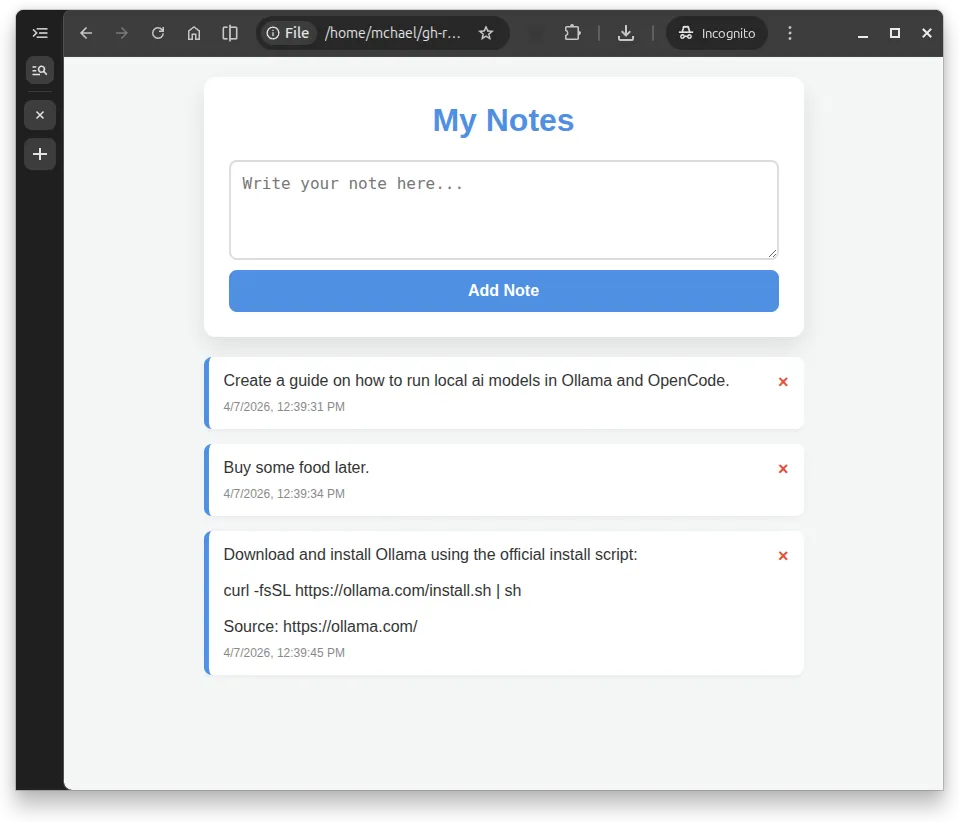
Working note-taking app generated by the local Gemma 26B model
The gemma4:26b model created this note-taking tool in 3m 29s. It may not look fancy, but it works! — add notes, delete them, timestamps appear automatically, and data persists after refresh and it even added a nice keyframes fade-in animation.
Features that work:
- Add notes via input field
- Automatic timestamps on each note
- Delete buttons (red X) remove individual notes
- Data persists in localStorage (survives page refresh)
- Clean, centered layout (~600px max-width)
- Smooth animations when adding notes
Troubleshooting
Issue: model 'gemma4-e4b' not found
Cause: The JSON key in opencode.json uses a hyphen instead of the exact Ollama model name.
Solution: Ensure the JSON key matches the model name exactly, including the colon:
// Wrong ❌
"models": {
  "gemma4-e4b": {
    "name": "gemma4:e4b"
  }
}

// Correct ✅
"models": {
  "gemma4:e4b": {
    "name": "gemma4:e4b"
  }
}
Issue: Ollama connection refused
Cause: Ollama service not running.
Solution: Check Ollama status:
sudo systemctl status ollama
ollama list
If not running:
sudo systemctl start ollamaIssue: Slow response times
Cause: First run loads model into memory; subsequent runs are faster.
Solution: Keep Ollama running. The model stays cached in RAM after first use.